To manage your Lead Assignment Hours:
Click on your ‘My Office(s)’ tab.
Click the ‘Additional Account Settings’ button at the top of the page.
Scroll to the very bottom of the page—the last section will be titled ‘Lead Assignment Hours’.
With this new feature, there are several ways to manage your overflow leads.
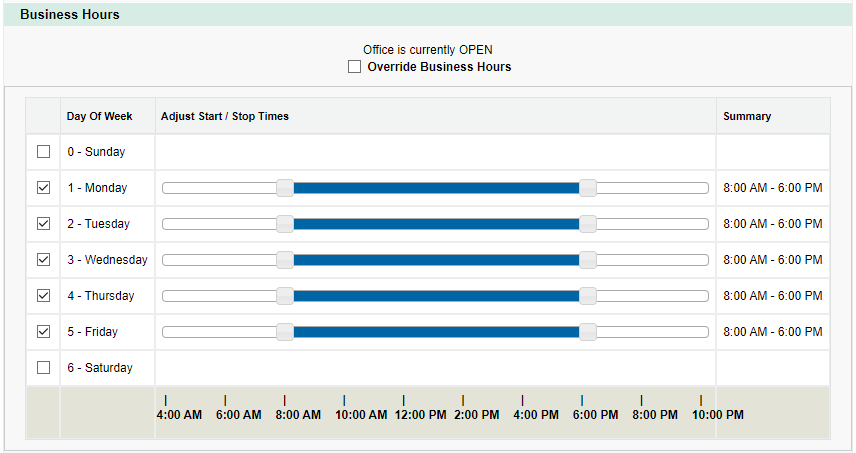
The ‘Lead Assignment Hours’ section is below your office's ‘Business Hours’ section. As a refresher, the screenshot below depicts the ‘Business Hours’ section, and you want to ensure these are set up for each office. Keep these hours up to date as they are used by various features within Cloud, including integrated Texting (if enabled) and the Dispatch Calendar.
There are 3 parts to the ‘Lead Assignment Hours’ section:
Current Lead assignment status
Lead assignment hours
Override of lead assignment hours
1. Current Lead Assignment Status
The current recipient of Leads based on the saved configuration is always displayed as a general aid.
Note that this only determined at the time the page is loaded and if changes are made and saved, so if for example the page is loaded just before a time boundary where the assignment changes and the page is left open, the status would be out of date until the page is reloaded or changes are made.
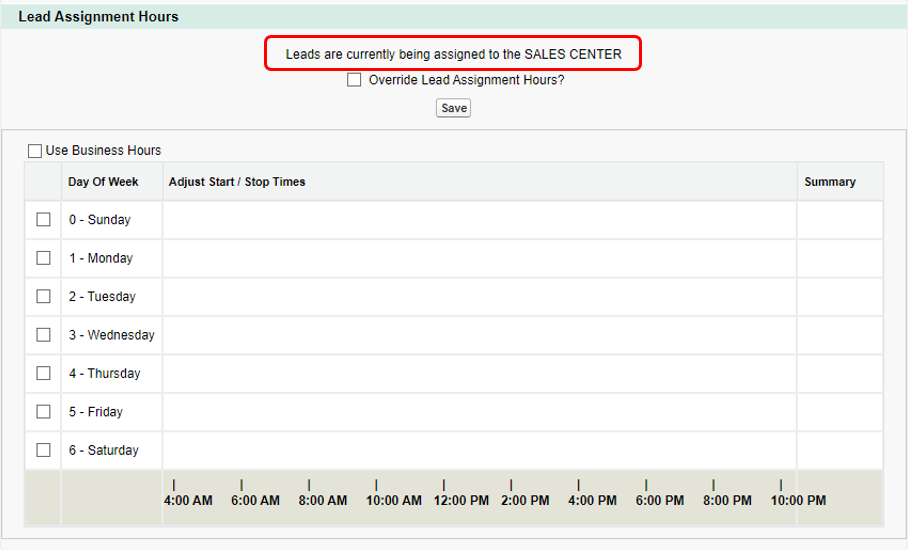
2. Lead Assignment Hours
This area controls which regularly recurring days and hours that Leads should be assigned to the Local Office.
Changes made in this area are automatically saved.
If you would like to use the same hours that are configured in the ‘Business Hours’ section, check on the ‘Use Business Hours’ checkbox. The ability to set hours under the ‘Lead Assignment Hours’ section is removed when this option is being used.
Note that the ‘Override Business Hours’ setting in the ‘Business Hours’ section is not observed for Lead Assignment purposes; use the override settings in the Lead Assignment Hours section (as detailed in the section (3) below) instead.
(add screenshot or number subsections)
If not using the configured business hours, you can control the assignment of Leads by checking off the desired days of the week and dragging the corresponding sliders for each day to the hours that you would like for Leads to be assigned to the local office.
(add screenshot if needed)
3. Override of Lead Assignment Hours
This area provides the ability to override the configured regular schedule for a specified period of time so that all Leads are assigned to the desired recipient. This can be used e.g. for holidays, unexpected office closures, etc.
Changes made in this area are not saved until the provided ‘Save’ button is clicked.
To override the configured regular schedule, check on the ‘Override Lead Assignment Hours?’ checkbox, enter a date and time range in the ‘From’ and ‘To’ inputs, and click the ‘Save’ button.
The override applies to the Business Hours if the ‘Use Business Hours’ checkbox Is enabled, or the Lead Assignment Hours if it is not. Note that the override DOES NOT take in to consideration the ‘Override Business Hours’ setting in the ‘Business Hours’ section.
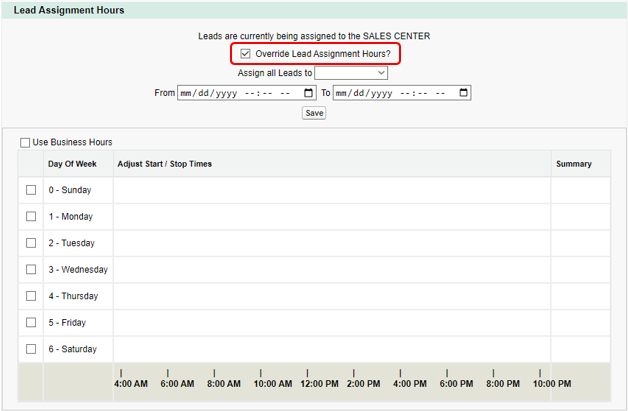
Depending on your Business Hours and what kind of Lead Assignment updates you want to make, select the Lead dropdown to choose who you want to take the incoming Leads, then fill out the From and To dates, and Save.
The example below shows that the Leads are currently assigned to the NSC, but we are going to override this so that the Local Office will be taking the leads for a specific period of time.
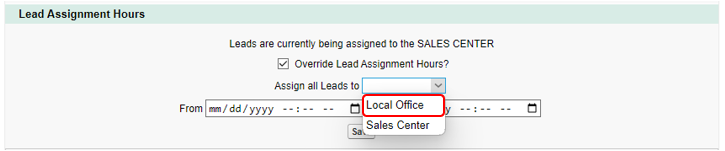
Checkmark the Override Lead Assignment Hours.
Select Local Office from the dropdown.
Enter the date/time of the duration in the From/To fields.
Save.
In this next example, you can see the office’s Business Hours are set 8:00 AM – 6:00 PM; Monday – Friday. The Leads are currently being assigned to the Local Office. In the event that the office doesn’t have coverage to take leads in hours or just needs some extra NSC support, we can set up the period of time for which the NSC can assist.
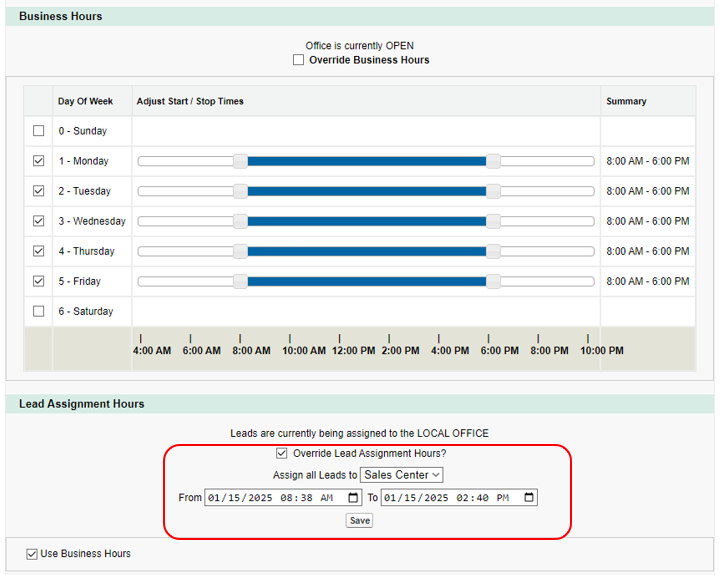
Checkmark the Override Lead Assignment Hours box.
Select Sales Center from the dropdown.
Enter the date/time in the From and To fields.
Save.
In this example, from January 15th (at 8:38 AM) to January 15th (at 2:40 PM) the NSC will assist with Leads for the office between those times. If you need a longer duration, you can set that up, as well, the same way.
If you need support getting override hours set up, please submit a ticket to the Helpdesk and we can assist!
Was this article helpful?
That’s Great!
Thank you for your feedback
Sorry! We couldn't be helpful
Thank you for your feedback
Feedback sent
We appreciate your effort and will try to fix the article