From the Job Overview page, you will now see the addition of ‘Start’, ‘Stop’, and ‘Duration’ information. This data is collected from your PRO’s mobile app. This information is also shown on the Job Completion page.
The Mobile Start/Stop Info section (at the top of the Job Overview page) remains unchanged. You will still see the Earliest Mobile Start, the PRO who clocked into the Job first, and that PRO’s distance from the client’s Service Location upon clocking in. As well as, the Latest Mobile Stop, the PRO who clocked out of the Job last, and their distance at time of clock out in relation to the client’s Service Location.
Current Mobile Start/Stop Info section (unchanged from previous versions of MaidPro Cloud) 
 Employees section of the Job Overview page (Mobile Time information is now displayed for ALL PRO’s on the Job)
This addition is nice for several reasons. Rather than running the ‘Mobile Times by PRO’ report to see when your employees clocked in and out of a job, you can now see this information from the Job’s overview page. The duration from clock in to clock out is also calculated. We have also included a map function in this section, so you can see the location of where the PRO started and stopped the job compared to the client’s home. Their distance from the client’s Service Location is also recorded. If the Start or Stop is more than 0.50 miles from the Service Location, it will be highlighted in red.
In the image above, you can see that our cleaner, Blue Izzy, started the job at 3:02pm and was 10.73 miles from the client’s home. Since her Stop location was less than a half mile from the service location, the Stop data is not highlighted. You can click on the map icon next to the Start/Stop info to see where exactly she was when she started and stopped the job. Below is what the map shows. You can zoom in to get more precise details of the locations.
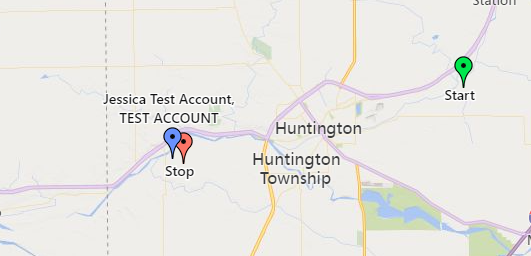
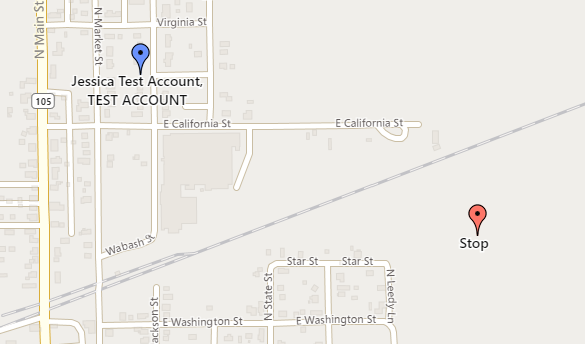
Map image at regular size view Map image zoomed in
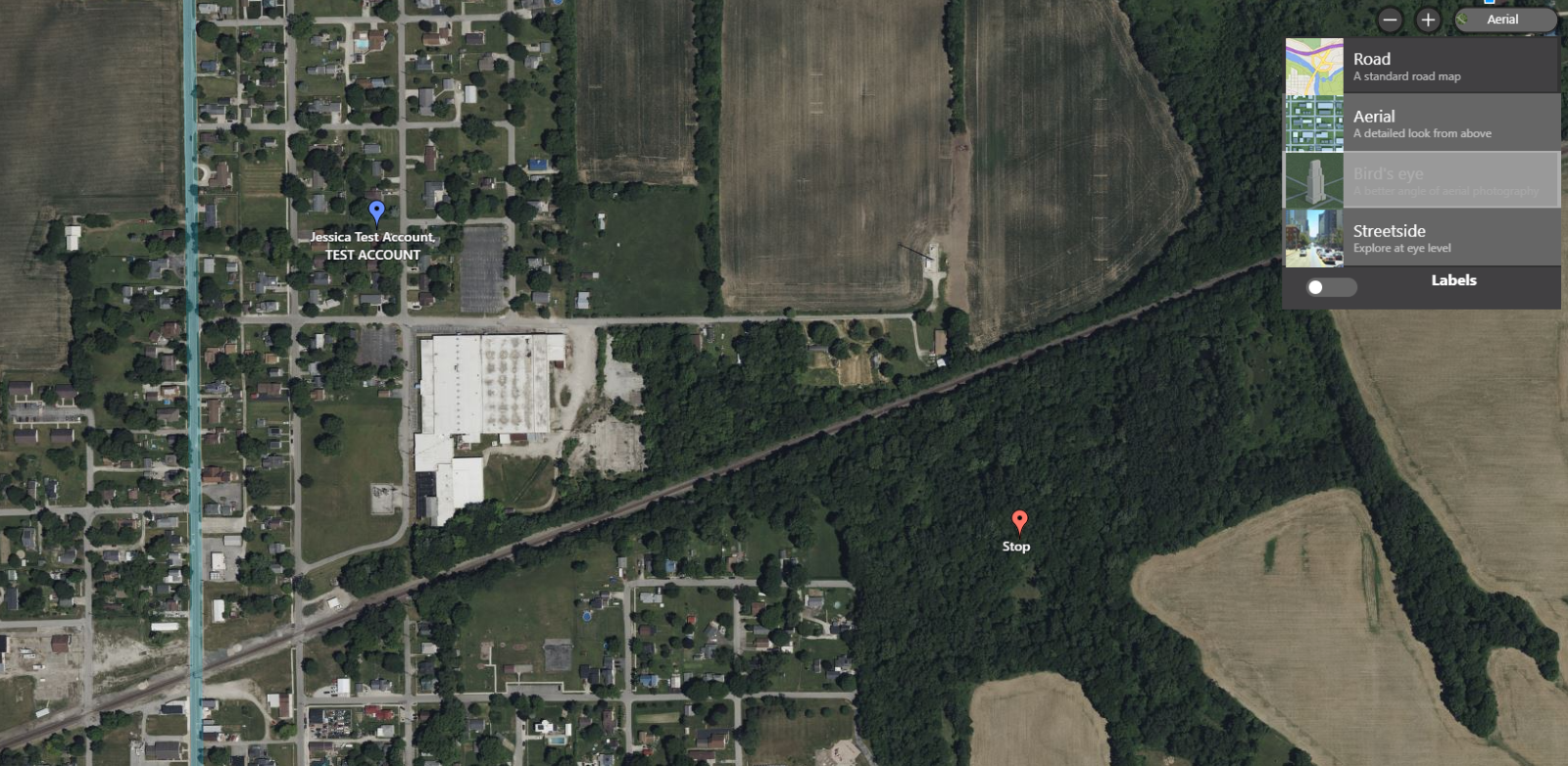
You can also change the view of the map. If you want to see the aerial view rather than the road view, you can change this in the upper right corner of the map page. You can also turn on/off the street names by toggling the Labels switch. Below is an image of the Aerial map view.
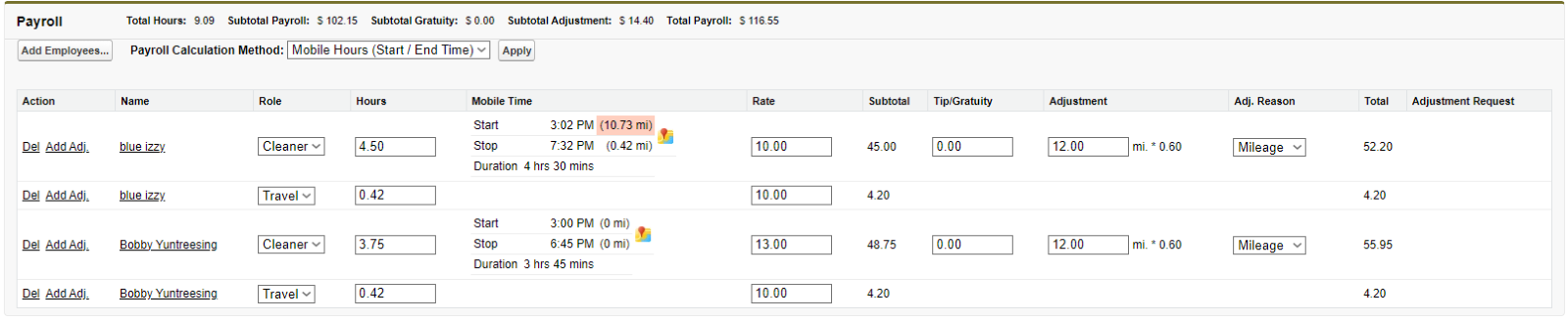
The Start, Stop, and Duration data is also shown on the Job Completion page. Below is a screenshot from the Job Completion page showing where the Mobile Times data has been added. Same as on the Job Overview page, the distance(s) will be highlighted if one or both are further than 0.50 miles from the client’s Service Location. Duration calculation is here based on the PRO’s Start/Stop times, and the mapping feature is accessible from this page as well. The mapping will always open in a new tab/page so that you do not lose the page you are currently looking at or working on.

Please do not hesitate to submit a Case to the helpdesk team if you have any questions about Mobile Time data.
Was this article helpful?
That’s Great!
Thank you for your feedback
Sorry! We couldn't be helpful
Thank you for your feedback
Feedback sent
We appreciate your effort and will try to fix the article